
Completion requirements
Workbook
A workbook is a separate file just like every other application has. Each workbook contains one or more worksheets. You can also say that a workbook is a collection of multiple worksheets or can be a single worksheet. You can add or delete worksheets, hide them within the workbook without deleting them, and change the order of your worksheets within the workbook.
Worksheet
A worksheet is made up of individual cells which can contain a value, a formula, or text. It also has an invisible draw layer, which holds charts, images, and diagrams. Each worksheet in a workbook is accessible by clicking the tab at the bottom of the workbook window. In addition, a workbook can store chart sheets; a chart sheet displays a single chart and is accessible by clicking a tab.
Cell
A cell is a smallest but most powerful part of a spreadsheet. You can enter your data into a cell either by typing or by copy-paste. Data can be a text, a number, or a date. You can also customize it by changing its size, font color, background color, borders, etc. Every cell is identified by its cell address, cell address contains its column number and row number (If a cell is on 11th row and on column AB, then its address will be AB11).
Window Components
Before you start using it, it’s really important to understand that what’s where in its window.
So ahead, we have all the major component which you need to know before entering the world of Microsoft Excel.
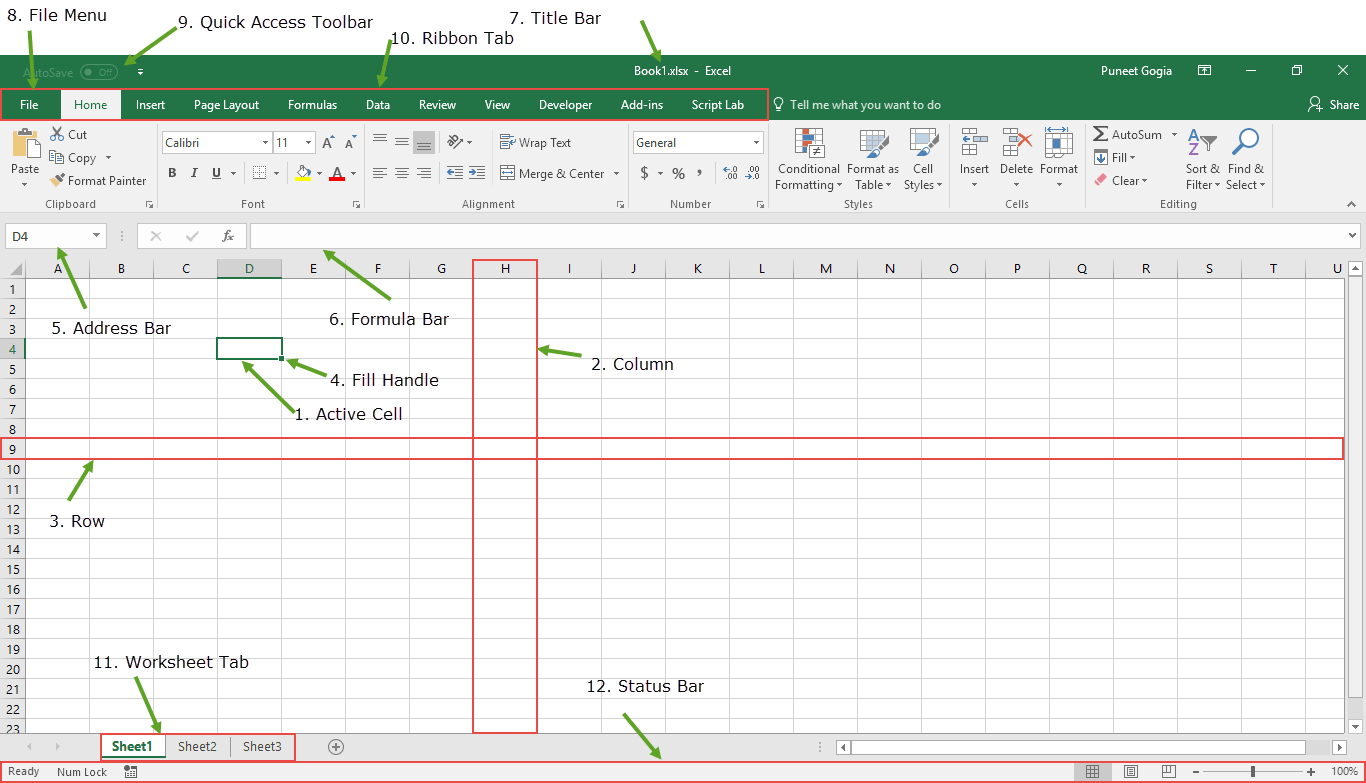
click on the image to zoom
Active Cell
A cell which is currently selected. It will be highlighted by a rectangular box and its address will be shown in the address bar.
You can activate a cell by clicking on it or by using your arrow buttons. To edit a cell, you double-click on it or use F2 to as well.
Column
A column is a vertical set of cells. A single worksheet contains 16384 total columns.
Every column has its own alphabet for identity, from A to XFD. You can select a column clicking on its header.
Row
A row is a horizontal set of cells. A single worksheet contains 1048576 total rows. Every row has its own number for identity, starting from 1 to 1048576.
You can select a row clicking on the row number marked on the left side of the window.
Fill Handle
It’s a small dot present on the lower right corner of the active cell. It helps you to fill numeric values, text series, insert ranges, insert serial numbers, etc.
Address Bar
The address bar is the small input bar at the left side of the window.
It shows the address of the active cell. If you have selected more than one cell, then it will show the address of the first cell in the range.
Formula Bar
Formula bar is an input bar, below the ribbon. It shows the content of the active cell and you can also use it enter a formula in a cell.
Title Bar
The title bar will show the name of your workbook, followed by the application name (“Microsoft Excel”).
File Menu
The file menu is a simple menu as like all other applications. It contains options like (Save, Save As, Open, New, Print, Excel Options, Share, etc).
Quick Access Toolbar
A toolbar to quickly access the options which you frequently use. You can add your favorite options by adding new options to quick access toolbar.
Ribbon Tab
Starting from the Microsoft Excel 2007, all the options menus are replaced with the ribbons. Ribbon tabs are the bunch of specific option group which further contains option.
Worksheet Tab
This tab shows the all the worksheets which are present in the workbook. By default you will see, three worksheets in your new workbook with a name of Sheet1, Sheet2, Sheet3 respectively.
Status Bar
It is a thin bar at the bottom of the Excel window. It will give you an instant help once you start your working in Excel.
Basic Functions
These are some of the most important features of Excel. It helps you to perform the basic calculations as well complex.
Below I have listed 10 basic functions which you need to learn.
- SUM: It returns the sum of numeric values in a cell. You can refer to the cells where you have values or simply insert the values into the function...
- COUNT: It returns the count of numeric values in a cell. You can refer to the cells where you have values or simply insert the values into the function...
- AVERAGE: It returns the average of numeric values in a cell. You can refer to the cells where you have values or simply insert the values into the function...
- TIME: It returns a valid time serial number as per Excel's time format. You need to specify hours, minutes and seconds...
- DATE: It returns a valid date serial number as per Excel's time format. You need to specify day, month and year...
- LEFT: This function extracts specific characters from the a cell/string starting from the left (start). You need to specify the text and number of characters to extract from it...
- RIGHT: This function extracts specific characters from the a cell/string starting from the right (last). You need to specify the text and number of characters to extract from it.
- IF: This function returns a value when the specific condition is TRUE and returns another values it condition is FALSE...
Last modified: Monday, 4 November 2019, 2:52 PM
Background Colour
Font Face
Font Kerning
Font Size
1
Image Visibility
Letter Spacing
0
Line Height
1.2
Link Highlight
Text Alignment
Text Colour